Creating Authenticators
Creating a machine identity with an Authenticator for proxy mode deployment is as simple as clicking the "New Authenticator" button and running through the wizard.
This process is for proxy mode deployments where Authenticators generate MFA credentials. In firewall mode, machines are passively discovered by Gatekeepers and do not require Authenticators.
Starting the Wizard
Navigate to the Machines Overview page.

Click the New Authenticator button.

Define the Machine
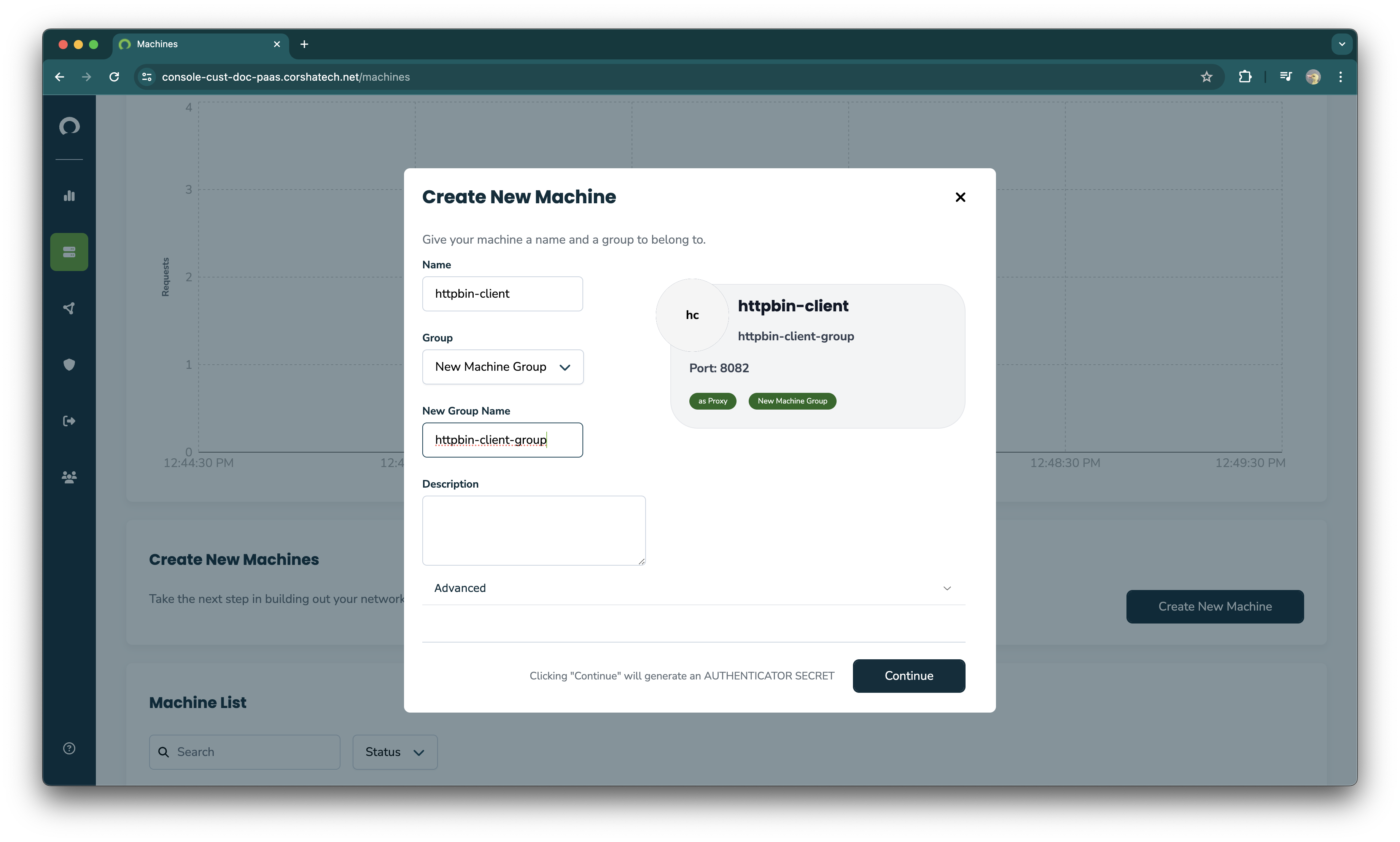
Next, give the machine a name, and assign it to a machine group. Then click Continue.
Add Routes to the Machine
The next page allows you to add Routes to the Authenticator. These Routes allow traffic to get passed through the Authenticator, where the Authenticator will inject a Corsha Cred into the traffic's http headers.
More can be found on how the authenticator adds a Corsha Cred to Requests in the Authenticator docs.
Click Continue after you have added routes.

Initialize the Machine
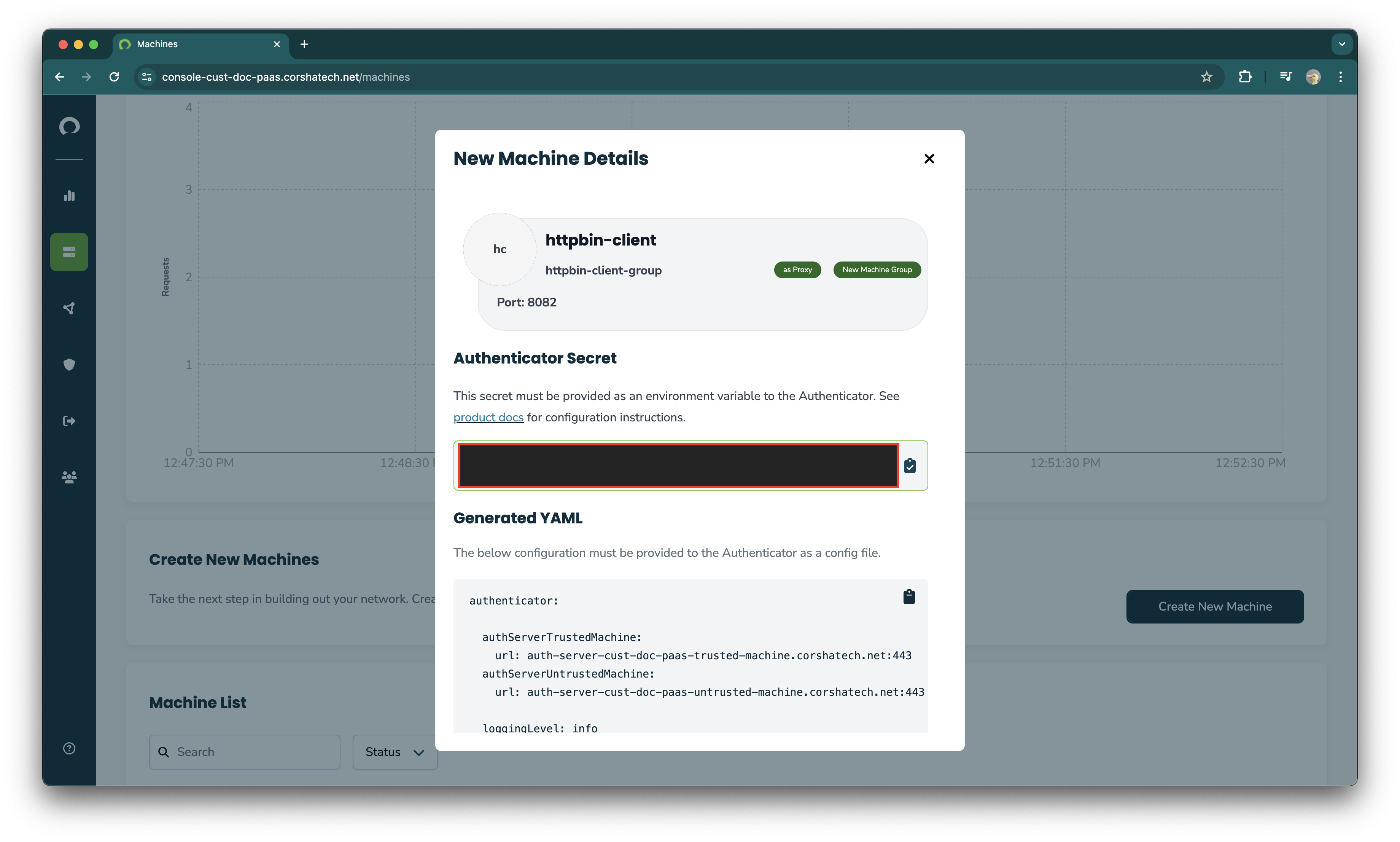
In the final screen we see our Machine is now ready to be deployed! The wizard provides you with an Authenticator Secret, which is provided as an environment variable to the Authenticator. The wizard also provides you with the config.yaml required to deploy your Authenticator. To deploy an Authenticator using these values, reference the Authenticator Getting Started Guide.
Next Steps
After creating your machine identity:
- Deploy the Authenticator using the provided configuration
- View machine details to monitor status and manage the machine
- Organize machines into groups for policy management