Managing Users
Keycloak is used to handle authentication to the Console. By default, the Console will deploy its own Keycloak instance and your Corsha TPOC will provide you will initial login credentials. If you are already managing users with Keycloak, your Corsha TPOC will help you set up the Console to authenticate using your existing Keycloak service.
Once access is given, it is possible to perform various administrative tasks such as Creating a User, Granting Administration Roles, Deleting a User, and Resetting a User's MFA. These actions are defined below, and reference the official Keycloak Documentation.
Creating a User
To Create a new Corsha User, a Keycloak User with Administration Roles will need to run through the Creating User Keycloak guide, then enable User MFA.
The Corsha TPOC will provide the first Keycloak User with Administration Roles. If you wish to create more Admins, you can elevate users by following the "Granting Administration Roles" section below.
Creating a Keycloak User is defined step by step in the Keycloak Documentation:
After the User is created, the Keycloak Admin must enable TOTP. To do this, the Admin should follow the Keycloak documentation on Setting Required Actions, and choose: "Configure TOTP".
When this required action is set, the Console User will be prompted with a QR code for their authenticator app at next Login.
Granting Administration Roles
Only Keycloak admins with specific roles can create Users in the Corsha Keycloak Realm. To give a user the ability to create users, the following Keycloak roles are required:
- "query-groups"
- "query-users"
- "manage-users"
To assign these new roles, navigate to the user you wish to edit, then click the Role Mapping tab.

Next, assign the required roles to the user.
When assigning roles to your user, you will have to click the filter dropdown and click Filter by Clients. Then, the roles you want will be visible.
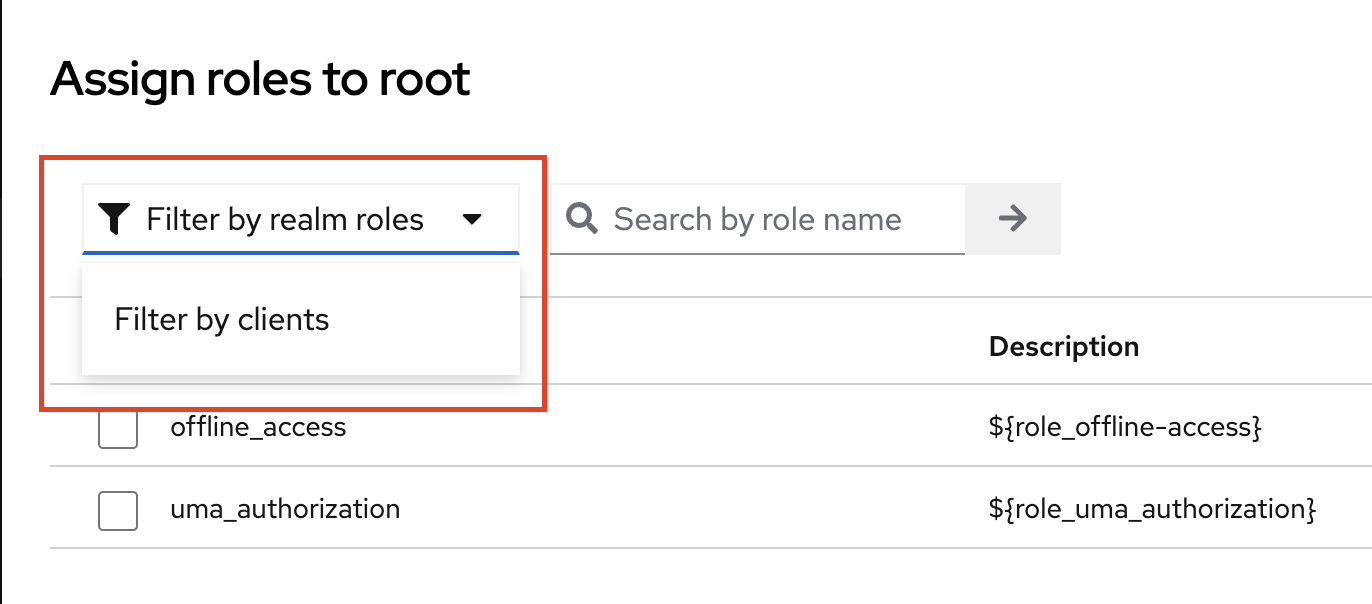
If you do not see the expected roles, please make sure you click the filter button as described in the previous step.
To get a deeper understanding of roles in Keycloak, dive into the Keycloak documentation on Role Mappings.
Deleting a User
If an account should no longer have access to the Console, this account should be deleted by following the Keycloak documentation on Deleting a User.
Resetting a User's MFA
If a user has lost or reset their mobile device, an admin will need to reset their TOTP. To do this, an admin should follow the Keycloak documentation on Setting Required Actions, and choose the action: "Update TOTP".