Manage Primer Secrets in the Console
Generate a New Primer Secret
To generate a new primer secret, a user will click on the "shield" icon on the left taskbar on the Console to be directed to the Primer Secrets overview page.

Click on the Create Primer Secret button and enter a description for the new primer secret to be generated. Corsha recommends that the description reflects the date and time of secret generation, plus other identifiers associated with a particular deployment.

After entering the description, click on the Submit button below the description. A new secret will be generated.
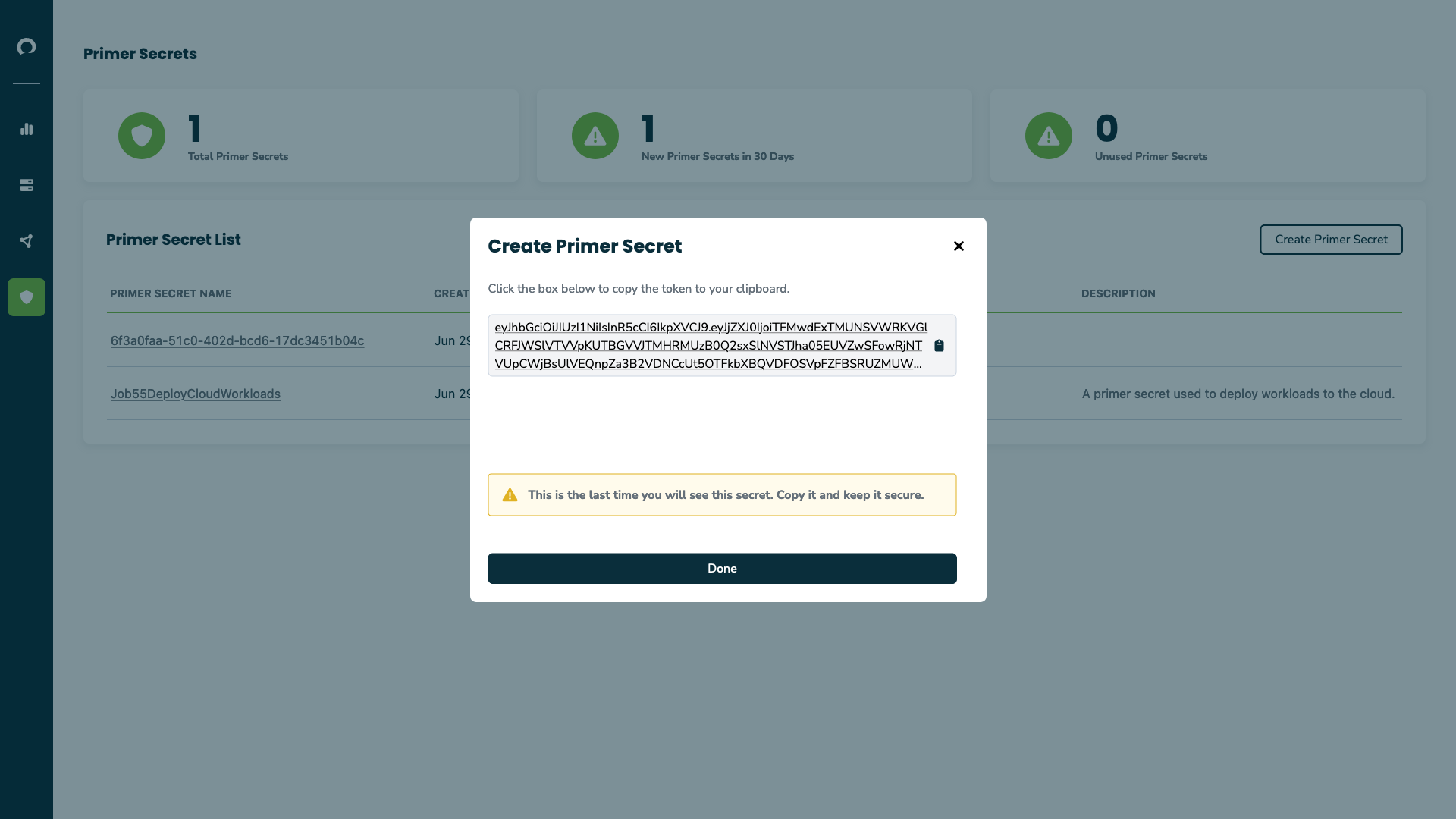
This is the one and only time this particular secret will be visible to the user and will be able to be copied. Once the user navigates away from this screen, the secret is no longer retrievable, so make sure to securely store offline if necessary.
Use the COPY button to make a copy of the secret for use in the CICD system. Note that double-clicking to copy the Primer Secret may not be successful, as a Primer Secret is formatted as a JSON Web Token (JWT), which consists of dot-separated base64 characters. Therefore, the use of the "COPY" button is recommended.
Double-clicking to copy the Primer Secret may not be successful since a Primer Secret is formatted as a JSON Web Token (JWT) which consists of dot-separated base64 characters, so use of the COPY button is recommended.

To generate additional Primer Secrets, follow the same process as described above.