Scheduled Access Policies
Scheduled Access Policies enable time-based access controls for machine groups. These policies allow you to permit or deny traffic from specific machine groups during defined time windows on specific days of the week.
See Managing Policies for an overview of all policy types, their precedence, and when to use each type.
Overview
Scheduled access policies provide:
- Weekly schedules: Define access windows that repeat on specific days of the week
- Time-based controls: Set start and end times for access windows
- Machine group targeting: Apply policies to entire machine groups
- Allow or Deny actions: Choose whether to allow or deny traffic during the scheduled window
Use Cases
Maintenance Windows
Allow maintenance traffic only during scheduled windows:
- Every Saturday 2:00 AM - 6:00 AM
- Weekday evenings for system updates
Business Hours Access
Restrict access to business hours only:
- Monday-Friday 8:00 AM - 6:00 PM
- Block after-hours access for contractor systems
Backup Windows
Enable backup jobs during specific time windows:
- Nightly backups: Every night 11:00 PM - 3:00 AM
- Weekend data synchronization
Development and Testing
Provide time-limited access for non-production systems:
- Weekday business hours only
- Weekend-only access for testing environments
Policy Components
A scheduled access policy includes:
- Machine Group: The machine group to which the policy applies
- Start Time: When the access window begins (HH:MM format)
- End Time: When the access window ends (HH:MM format)
- Days of Week: Which days the policy applies (Monday, Tuesday, Wednesday, Thursday, Friday, Saturday, Sunday)
- Action: Allow or Deny traffic from the machine group during the window
How It Works
During Scheduled Window
When a scheduled access policy window is active (on specified days, between start and end times):
- Allow policies: Traffic from the machine group is permitted
- Deny policies: Traffic from the machine group is blocked
Outside Scheduled Window
When outside the policy's time window or on non-specified days:
- The policy is not applied
- Traffic from the machine group is handled by regular connection rules and enforcement mode
Interaction with Other Policies
Connection Rules
Scheduled access policies work alongside connection rules:
- Allow scheduled policies can grant temporary access during specified windows
- Deny scheduled policies can block access during specified windows
- Outside scheduled windows, regular connection rules apply
Protocol Enforcement Rules
Protocol enforcement rules always take precedence:
- If a protocol enforcement rule blocks traffic, scheduled Allow policies cannot override it
- Scheduled policies must comply with global protocol restrictions
Enforcement Modes
Scheduled access policies interact with enforcement modes:
- Allow by Default: Scheduled Deny policies block traffic during windows
- Block by Default: Scheduled Allow policies grant temporary access during windows
- Observe-Only: Scheduled policies are logged but not enforced
Creating Scheduled Access Policies
-
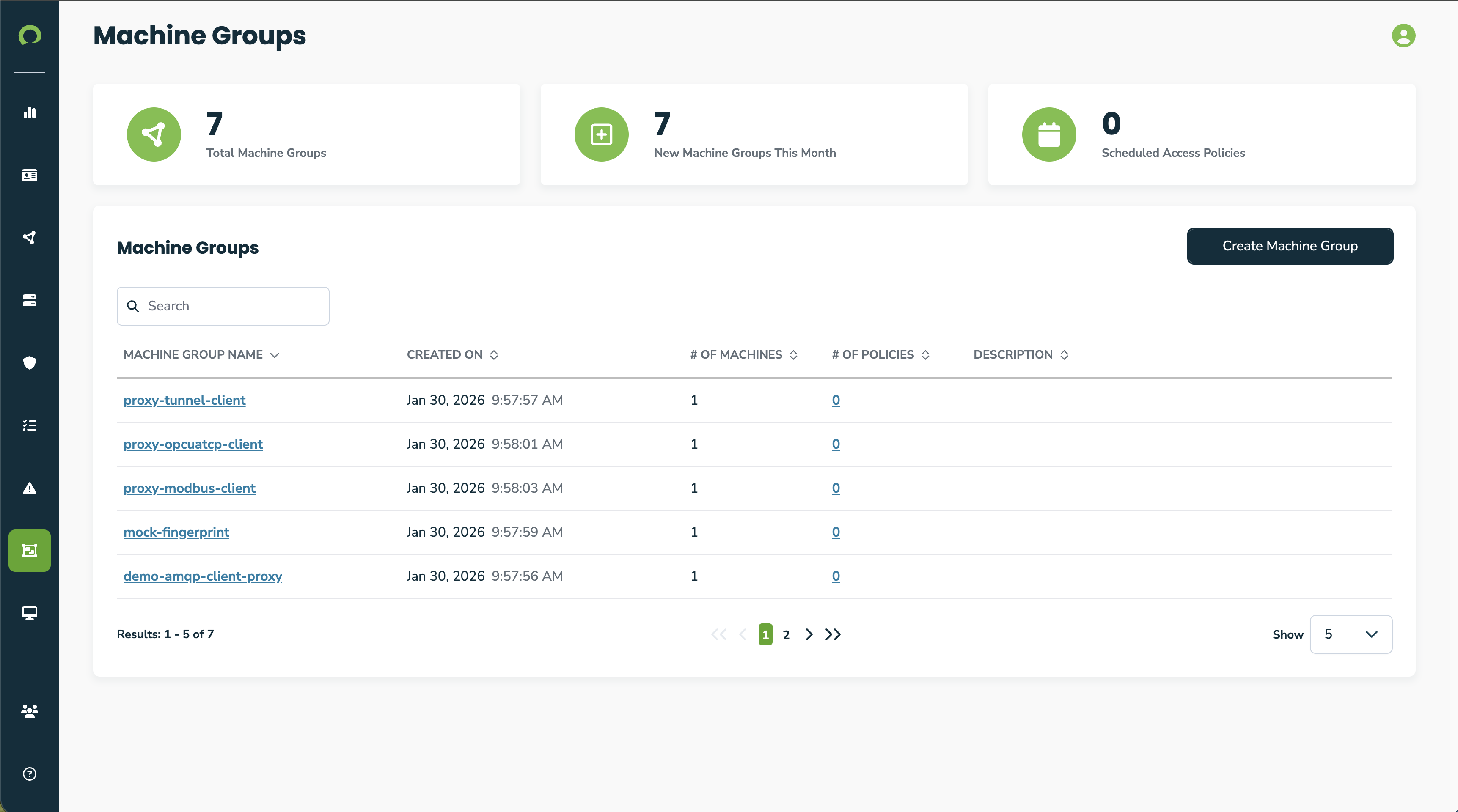
Navigate to the machine groups page
-
Click a machine group from the list to go to it's details page

-
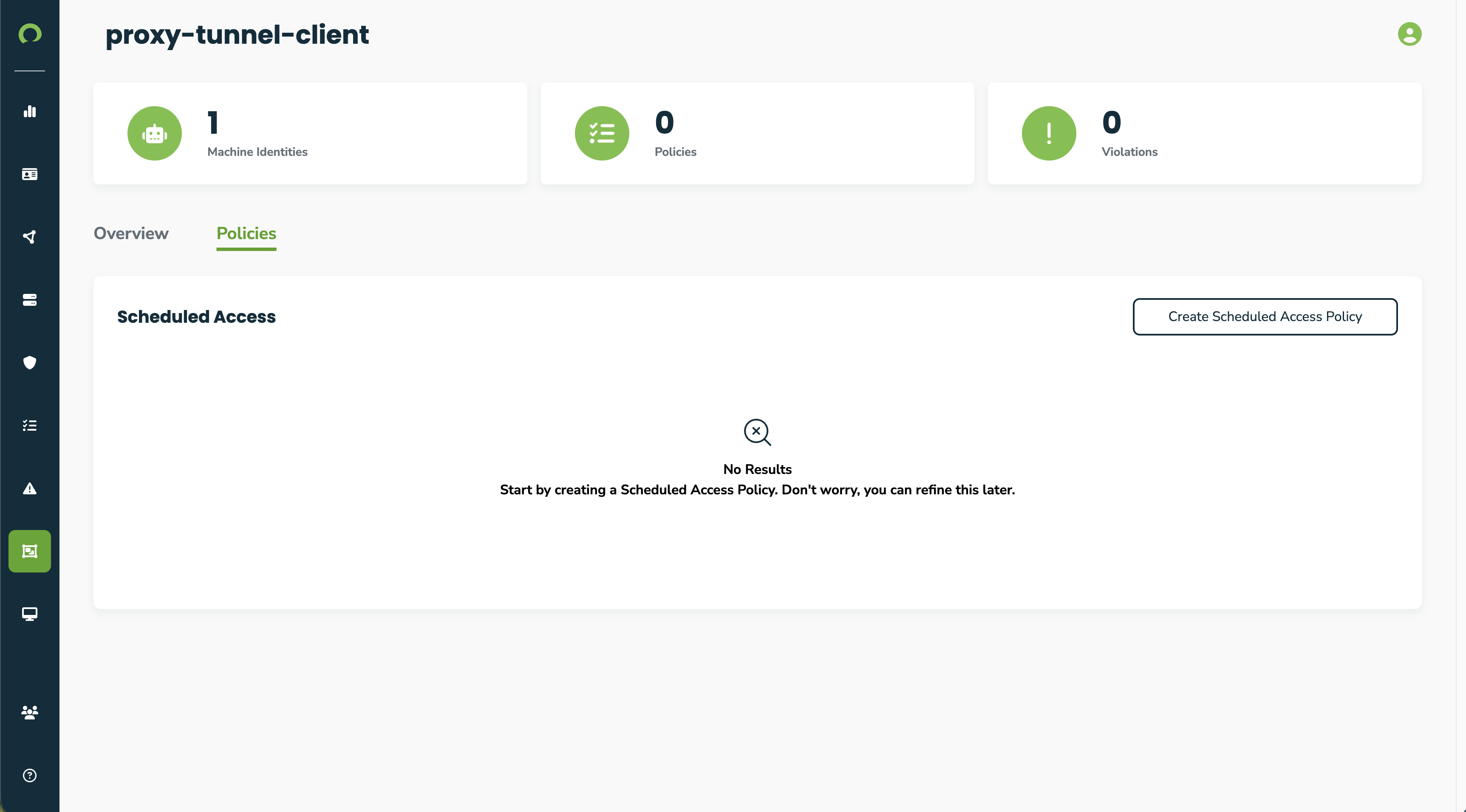
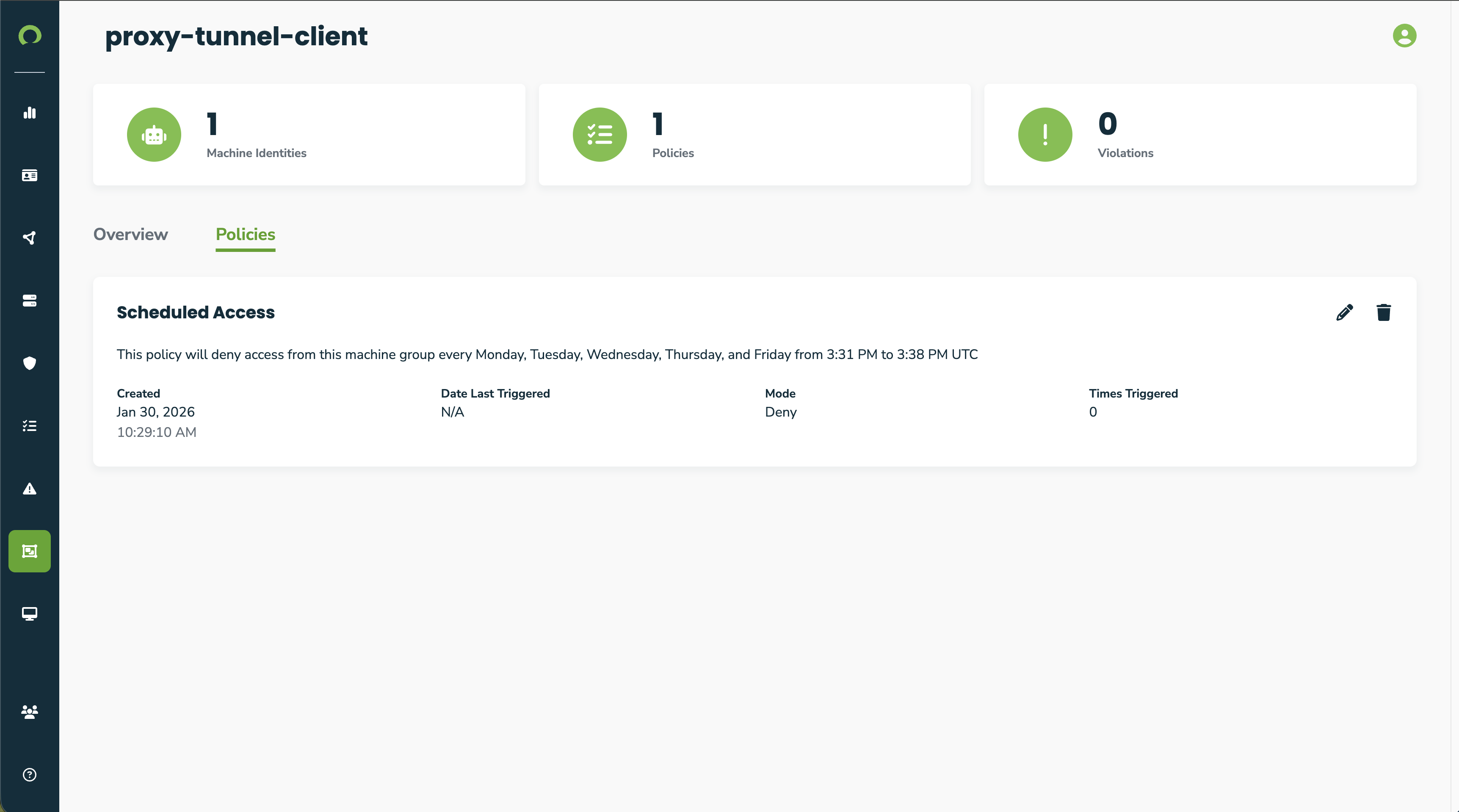
Click the "Policies" tab to view a machine group's scheduled access policies
-
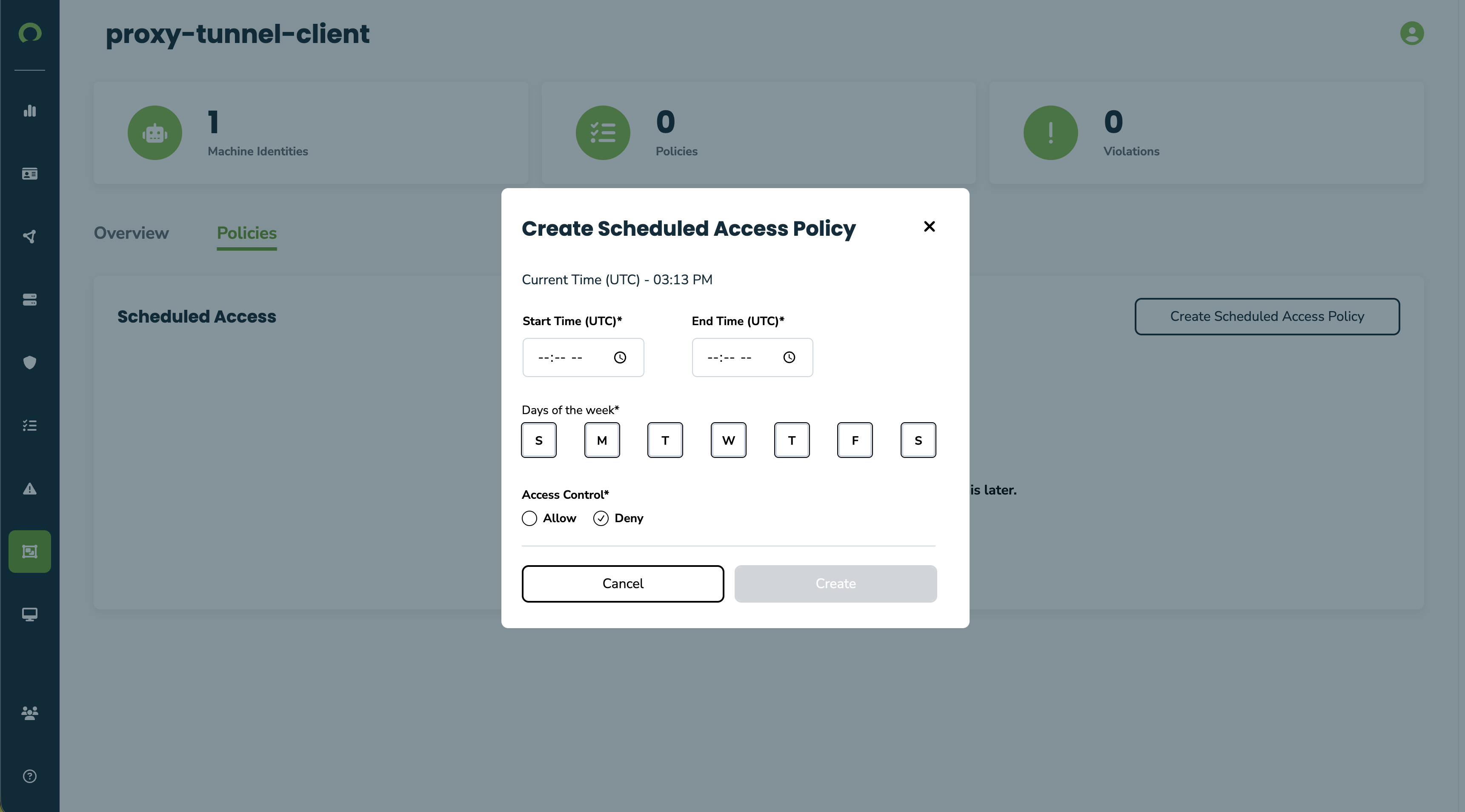
Click the "Create Scheduled Access Policy" button to create a scheduled access policy
-
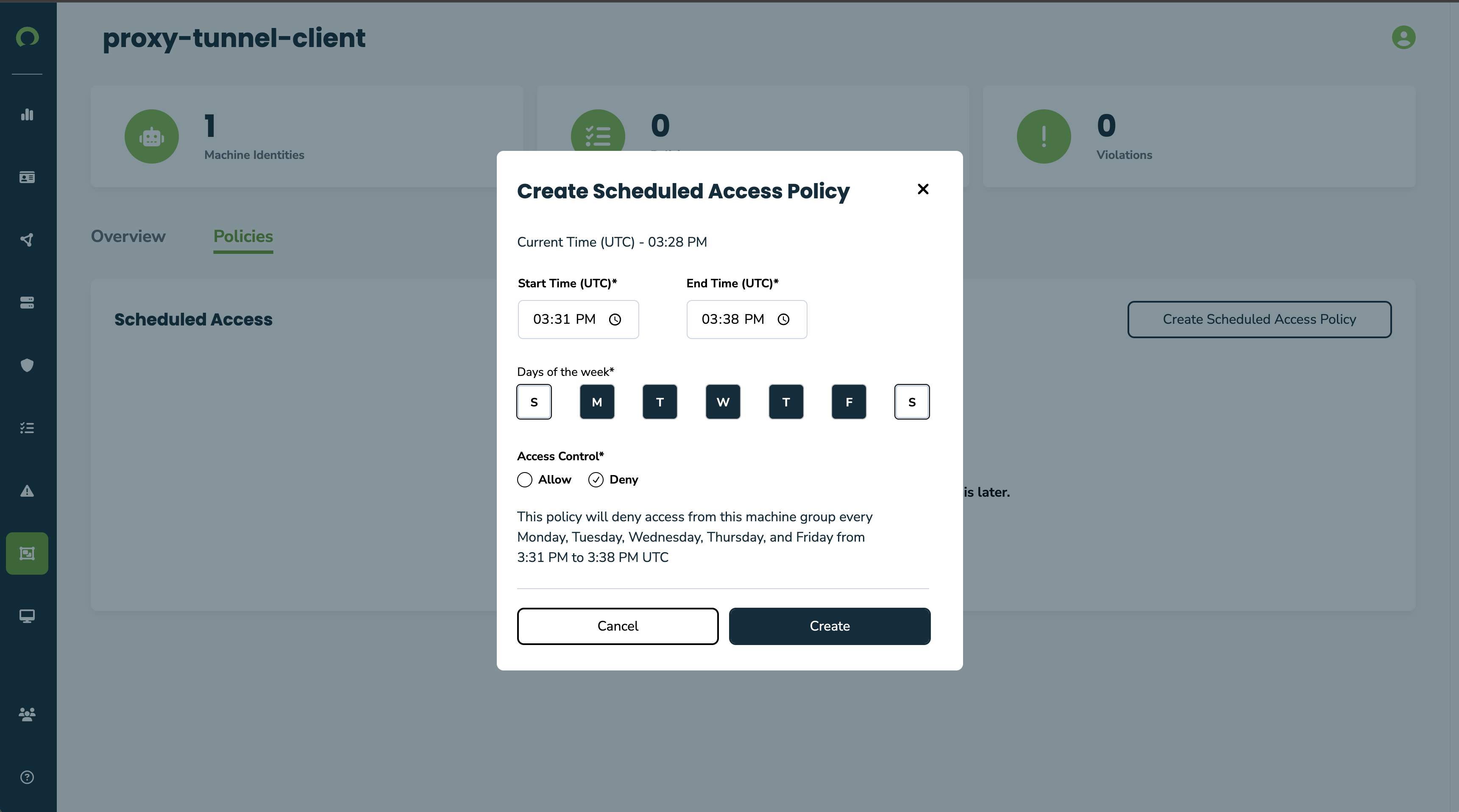
Fill in the details of the policy. Include a start and end time, the days of the week it should be in affect, and the action that should be enforced during the scheduled periods.
-
Click "Create" and view the newly created scheduled access policy
-
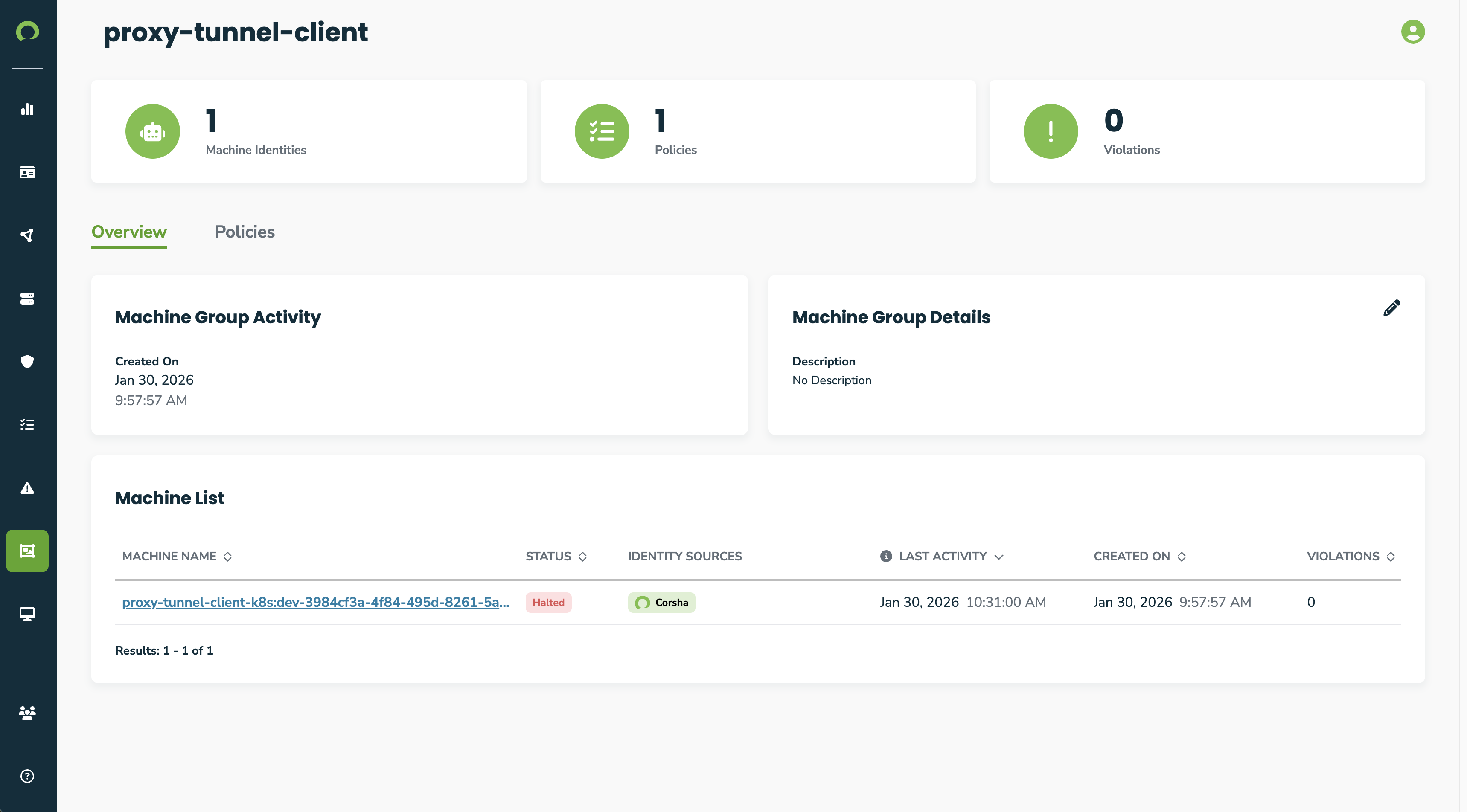
Now click the "Overview" tab to view a list of machine identities in the machine group. Due to the scheduled access policy created above, the machine is now in a Halted.
Required Information
To create a scheduled access policy, you need:
- Machine Group: Which group the policy applies to
- Start Time: Time of day when window begins (e.g., 08:00)
- End Time: Time of day when window ends (e.g., 17:00)
- Days: Which days of the week (e.g., Monday, Tuesday, Wednesday, Thursday, Friday)
- Action: Allow or Deny
Example Policies
Business Hours Access:
- Machine Group: Contractor Systems
- Start Time: 08:00
- End Time: 18:00
- Days: Monday, Tuesday, Wednesday, Thursday, Friday
- Action: Allow
Maintenance Window:
- Machine Group: Database Servers
- Start Time: 02:00
- End Time: 06:00
- Days: Saturday, Sunday
- Action: Allow
After-Hours Block:
- Machine Group: External Partners
- Start Time: 18:00
- End Time: 08:00
- Days: Monday, Tuesday, Wednesday, Thursday, Friday
- Action: Deny
Best Practices
- Clear time boundaries: Ensure start and end times clearly define your access windows
- Coordinate time zones: Be aware of time zone differences when setting schedules
- Document purpose: Note why specific schedules are in place
- Test before production: Verify policies work as expected in non-production environments
- Review regularly: Audit scheduled policies to ensure they still meet requirements
- Communicate changes: Inform affected teams when creating or modifying scheduled policies
Monitoring Scheduled Policies
Review access logs and activity for machine identities on their details page based on the scheduled access policies they are associated with.
Troubleshooting Unexpected Allowed/Blocked Traffic
- Verify the current day matches the configured days of week
- Check that current time is between start and end times
- Confirm the machine belongs to the specified machine group
- Verify enforcement mode
- Check if a protocol enforcement or connection rule is allowing/blocking the traffic
- Verify Gatekeeper has synchronized the latest policies
Next Steps
- Configure connection rules to define network communication policies
- Manage machine groups to organize machines for scheduled policies